
Move to cloud: servers and keys from your Mac open from any browser
tTerm for Mac now moves the servers you reach from your Mac over ssh to the cloud, together with your SSH keys. The keys go into a vault: they are encrypted on your Mac, and only you can open them, with the vault password in any browser.
Why
From your Mac you reach your servers over ssh: the keys are in ~/.ssh, the addresses and users in ~/.ssh/config. But step away from the Mac, and those servers are out of reach: from a browser, from a phone, from someone else's computer. Move to cloud takes them into tTerm, and they open from anywhere.
Where it is
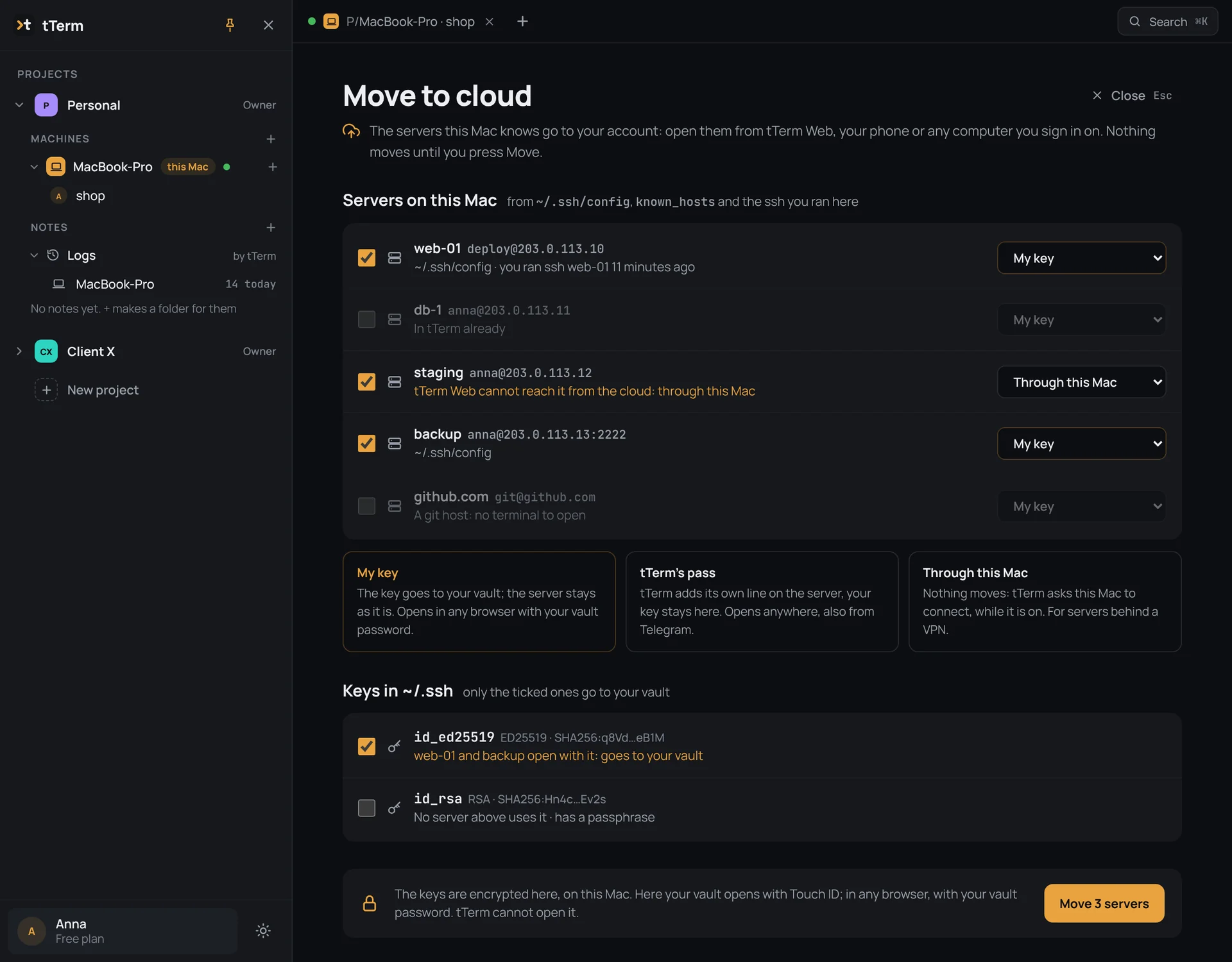
In tTerm for Mac, click your account at the bottom of the sidebar and choose Move to cloud. The window shows Servers on this Mac. tTerm takes them from ~/.ssh/config, known_hosts and the ssh commands you ran in its terminals. Until you press Move, nothing goes anywhere.
Three ways in
Each server has its own way in:
- My key: the key goes into the vault, and the server stays as it is.
- tTerm's pass: tTerm adds its line to the server, and your key stays on the Mac.
- Through this Mac: nothing is moved. tTerm asks the Mac to connect while it is on. This is for servers behind a VPN.
tTerm picks the right way itself, and you can change it.
The key vault
A key is encrypted on your Mac before it leaves it. tTerm keeps only the ciphertext, the key's public half and its fingerprint: we cannot open the vault or read a key. When you open a server, your device signs the login, and the key never leaves it in the clear.
The vault password
You make it up yourself when you make the vault. With it, your keys open in any browser, even on someone else's computer and with no Mac. The password itself goes nowhere: tTerm does not know it and cannot recover it, so keep it in your password manager. On your own computer press Keep with Touch ID, and the password is not asked there again; on someone else's, choose Only this time.
Only where you opened your keys
Servers with your key, servers through your Mac and the Mac itself open only on a device where you opened your keys yourself. Signing in to your account with the code from your email is not enough for them: it is a second lock, in case someone gets into your email. Where your keys are not open, such a machine has a lock in place of “+”. Click it, type the password, and the terminal opens.
The strip after ssh
When ssh ends without an error in a terminal of tTerm for Mac, a strip with Save my key and Let tTerm in may appear under its block. That way you can move a single server without opening the move window.
All of this is in tTerm for Mac 0.8.1. The details are in the docs, on the pages Move to cloud and Your vault of SSH keys.